How to view iCloud photos is one of the most common questions for people using iPhones, iPads, or Macs. If you take lots of photos and videos, iCloud keeps them safe in the cloud so you can access them anytime, anywhere. Viewing your photos on iCloud is easy once you know the right steps. Whether you want to see your pictures on your iPhone, iPad, Mac, or even a Windows PC, iCloud makes it simple and secure. You don’t need to transfer photos manually or worry about losing them if your device is damaged. With iCloud, your memories are always available with just a few taps or clicks. In this guide, we will explain the simplest ways to view your iCloud photos and help you understand how to manage them easily without any confusion or technical problems.
How to View iCloud Photos on iPhone – Simple Steps for Beginners
Viewing iCloud photos on your iPhone is very easy and safe. First, make sure your iPhone is connected to Wi-Fi and signed in with your Apple ID. Open the Photos app, and you will see all your photos and videos that are stored in iCloud. If you don’t see them, go to Settings, tap your name, then iCloud, and make sure Photos is turned on. You can also choose “Download and Keep Originals” if you want full-size photos on your device. Scrolling through your iCloud photos is simple, and you can search by date, place, or even people. This way, your memories are always with you, and you can enjoy, share, or organize them anytime, without losing a single photo from your iPhone.
How to Access iCloud Photos on iPad Without Losing Data
Accessing iCloud photos on an iPad works almost the same as an iPhone. Start by opening Settings, then tap your name at the top, and select iCloud. Make sure Photos is turned on and “iCloud Photos” is enabled. Next, open the Photos app, and you will see all your images and videos synced from iCloud. You don’t have to worry about losing your photos because iCloud keeps them safe in the cloud. You can also organize your albums and use search to find any picture quickly. If your iPad has limited storage, you can choose “Optimize iPad Storage” to save space while keeping your full-resolution photos in iCloud. This makes viewing, sharing, and organizing your photos simple and safe on your iPad.
Step-by-Step Guide to View iCloud Photos on Mac
Viewing iCloud photos on a Mac is simple and organized. First, make sure your Mac is signed in with the same Apple ID used for iCloud. Open the Photos app, then click on “Photos” in the sidebar. Your iCloud photos will automatically appear here if iCloud Photos is turned on in System Preferences. You can scroll, search, and organize albums easily. If you want full-size images, go to Preferences and select “Download Originals to this Mac.” Mac also allows you to edit and share your photos directly from the app. By using iCloud on your Mac, all your photos and videos are synced automatically, so you can see your memories anytime without worrying about losing them or losing quality.
How to See iCloud Photos on Windows PC Quickly
Even on a Windows PC, you can see your iCloud photos without problems. First, download and install the iCloud app for Windows. Sign in with your Apple ID, and check the box for Photos. Open File Explorer, then click “iCloud Photos” in the sidebar to view all your synced photos and videos. You can also upload or download photos to and from iCloud easily. Using iCloud on Windows allows you to keep your images backed up while giving quick access to them from your PC. You can create folders, organize albums, or even share pictures directly. This makes it very convenient for people who use both Apple and Windows devices.

Viewing iCloud Photos Online – iCloud.com Explained
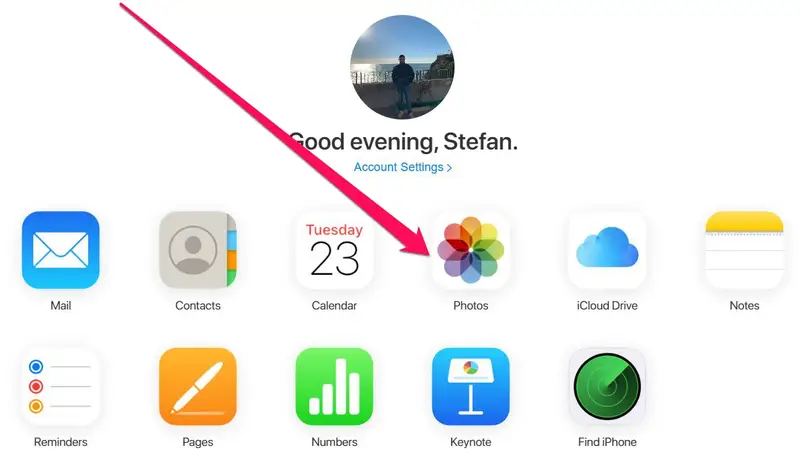
iCloud.com is a web platform where you can view all your iCloud photos from any device. Open a browser, go to iCloud.com, and sign in with your Apple ID. Click on the Photos icon, and you will see all your pictures and videos stored in iCloud. You can download, delete, or share images from here easily. This method is very helpful if you don’t have your Apple device nearby. iCloud.com also lets you organize photos in albums and search for specific pictures. Your memories are safe, and you can access them anytime with an internet connection. This is a simple way to enjoy and manage your iCloud photos online without any complicated steps.
How to Organize iCloud Photos for Easy Access
Organizing iCloud photos helps you find your favorite memories quickly. On any device, you can create albums, name them, and add photos to each album. You can also delete duplicate or unwanted pictures to save space. Searching by date, location, or people makes it faster to find the photos you want. iCloud automatically syncs your organization across all devices, so changes on iPhone will show on Mac, iPad, or iCloud.com. You can even mark favorites for easy access. Keeping your photos organized ensures you don’t waste time scrolling endlessly and makes sharing simple. A neat iCloud photo library also helps you enjoy your memories more and keeps your cloud storage clean and easy to manage.
Conclusion
iCloud photos make it very easy to see and enjoy your memories on any device. Whether you use an iPhone, iPad, Mac, or even Windows PC, iCloud keeps your pictures safe and always available. You can organize, share, or download your photos anytime without stress.
By following the simple steps in this guide, you can view iCloud photos quickly and safely. Using iCloud also helps you save space on your devices while keeping full-resolution images in the cloud. Enjoy your memories without worry and always have your photos ready to look at or share.
FAQs
Q: How can I view iCloud photos on iPhone?
A: Open the Photos app on your iPhone, make sure iCloud Photos is turned on in Settings, and you can see all your photos.
Q: Can I access iCloud photos on Windows?
A: Yes, install the iCloud app for Windows, sign in, and open iCloud Photos in File Explorer.
Q: How do I view iCloud photos online?
A: Go to iCloud.com, sign in with your Apple ID, and click the Photos icon to see your pictures.